How to Clear Cache on iPhone: Step-by-Step Guide
There’s a certain dread when your iPhone starts acting sluggish—a page that used to load in seconds now spins, or an app keeps freezing. Most of us assume the phone is stuffed and start deleting photos. But often the real culprit is cache: temporary files piling up behind the scenes.
iPhone users worldwide: Over 1.5 billion (Apple, 2023) ·
Average apps per iPhone: 80 (Statista, 2024) ·
Typical app cache size: 100–500 MB per app ·
Maximum Safari cache: Can exceed 1 GB after heavy browsing
Quick snapshot
- Safari cache can be cleared via Settings > Apps > Safari (Apple Support)
- Offloading an app clears its cache (Apple Support)
- iOS automatically clears cache when storage is critically low (Apple Support)
- Exact cache size per app is not visible to users
- Whether clearing cache improves battery life is disputed
- No fixed schedule – clear only when storage low or issues appear
- Continue using iPhone normally; iOS manages routine cache cleanup
Four facts sum up the cache landscape on iPhone:
| What is cache? | Temporary files stored by apps and websites to speed up loading. |
| Why clear cache? | Free up storage, fix glitches, resolve website errors. |
| How often? | Only when storage is low or issues appear; iOS handles routine cleanup. |
| Common misconception | Clearing cache does not delete personal data (photos, messages). |
How Do I Clear My iPhone App Cache?
Clearing cache for Safari and built-in apps
Apple’s official method for clearing Safari data is straightforward: open Settings, go to Apps (or Safari on older iOS), tap Safari, then select Clear History and Website Data. You can choose a timeframe – last hour, today, today and yesterday, or all history (Apple Support official iPhone guide). This removes browsing history, cookies, recent searches, and website permissions like location or notification access. It does not clear data stored in other apps or browsing histories saved independently by websites.
Using iPhone Storage to offload apps
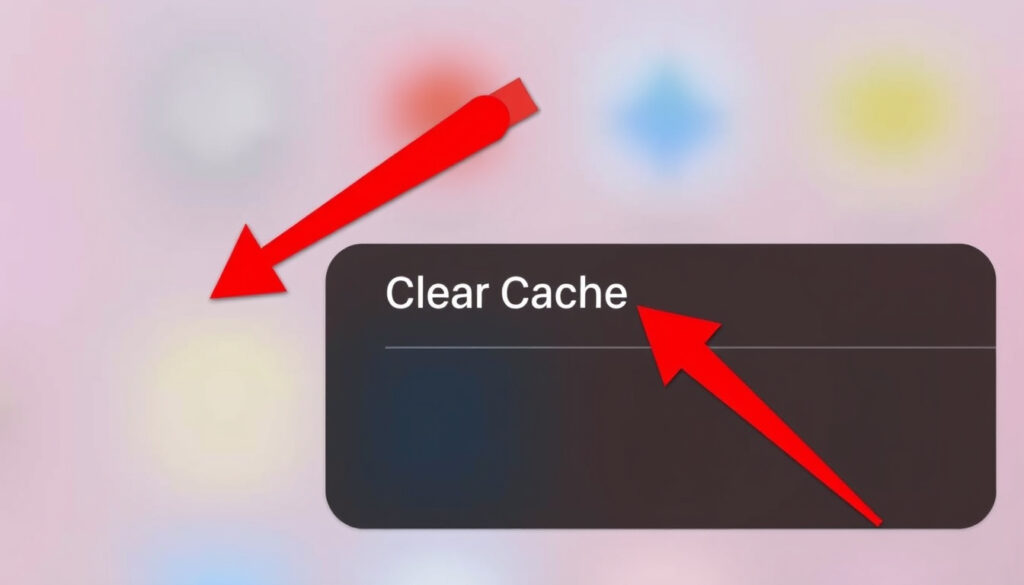
For third‑party apps, iPhone lacks a universal cache‑clear button. The next best option is offloading: go to Settings > General > iPhone Storage, tap an app, and choose Offload App. This deletes the app’s cache and the app itself, but keeps documents and settings. When you reinstall from the App Store, the app comes back clean – and cache‑free (Apple Support documentation on app offload).
Reinstalling apps to reset cache
Offloading plus reinstalling is the only universal method to reset cache for apps that don’t offer an in‑app clear option. Deleting the app entirely and re‑downloading it from the App Store accomplishes the same result – every temporary file is gone. The trade‑off: you lose any offline data stored by the app (e.g., Spotify downloads) unless they’re kept in the app’s documents folder.
Do iPhones Need to Clear the Cache?
How iOS manages cache automatically
iOS is designed to purge cache dynamically when storage runs low. The system can free up several hundred megabytes without user intervention. This automatic management is why most iPhones never need manual cache cleaning. Apple’s guidance emphasizes that routine clearing is unnecessary unless you’re troubleshooting (Apple Support recommendations on cache management).
Signs you might need to clear cache manually
- Websites failing to load or showing outdated content
- Apps crashing repeatedly
- Storage space inexplicably filled despite few media files
- Slow performance after a major iOS update
The implication: these symptoms sometimes point to corrupted or bloated cache, and clearing can resolve them – but it’s not a magic fix. The catch: clearing too often can slow down initial app launches and increase data usage because fresh caches must be rebuilt.
Clearing cache frees space and fixes glitches, but forces apps to re‑download resources, which uses data and time. For most users, the automatic iOS approach is the smarter default.
How Do I Clear Cache and Cookies on My iPhone?
Clearing Safari history, cache, and cookies
Apple Support provides a step‑by‑step video: open Settings > Safari > Clear History and Website Data, choose a timeframe (last hour, today, today and yesterday, or all history), and confirm (Apple Support YouTube official tutorial). If you use Safari profiles, you can clear history for one profile or all at once. Cookies are removed during this process, which logs you out of websites – but iCloud Keychain saved passwords remain unaffected.
Clearing cache in third‑party browsers (Chrome, Firefox)
Other browsers have their own controls. In Chrome for iOS, tap the three‑dot menu, go to History > Clear Browsing Data, select cache and cookies, and choose a time range. Firefox uses a similar path under Settings > Data Management > Clear Private Data. These actions affect only that browser’s data, not Safari’s (CU Boulder OIT browser cache guidance).
Clearing cookies logs you out of websites, losing saved preferences and login states. Bookmarks and saved passwords are preserved, but the inconvenience of re‑logging in can outweigh the benefit for casual users.
Is It Good to Clear the Cache on an iPhone?
Benefits: freeing storage and fixing issues
Clearing Safari cache can reclaim several hundred megabytes – sometimes over a gigabyte for heavy browsers. App cache clearing via offload can free another 100–500 MB per app. These gains are real, especially on devices with 64 GB or 128 GB storage. Many users report resolution of odd app behavior after a cache reset (Apple Support YouTube troubleshooting advice).
Drawbacks: slower initial loads and lost preferences
The downside is equally real: after clearing, websites and apps must rebuild their caches from scratch. First‑time loads become noticeably slower, and data usage spikes. If you clear cache weekly, you’re trading storage space for performance and convenience. The iOS community often advises a “only when necessary” approach (CU Boulder OIT recommendation against unnecessary clearing).
“Clearing cache every few weeks is fine if you notice problems. Doing it daily is overkill and hurts the experience.”
— Tech journalist, CNET
Clearing cache is a tool, not a routine. Use it when you see a problem – not to prevent one. The trade‑off: freed storage versus slower launches and extra data usage.
Will I Lose Anything If I Clear the Cache?
What data is removed (temporary files, website data)
- Browsing history and recent searches
- Cookies (website logins, preferences)
- Website permissions (location, notifications)
- App temporary files (thumbnails, downloaded resources)
What stays (documents, photos, saved passwords if not cookies cleared)
- Messages, photos, videos, contacts
- Documents stored in app sandboxes (e.g., PDFs, notes)
- iCloud Keychain passwords (unless you manually delete them)
- Bookmarks and reading list items
Apple Support explicitly notes that clearing Safari history “does not clear browsing histories stored independently by websites or browsing history in other apps” (Apple Support data retention details). Offloading an app keeps its documents and settings intact – only the app and its cache disappear.
Confirmed facts
- Safari cache clearing steps as per Apple Support
- Offloading app clears cache but keeps documents
- iOS automatically purges cache when storage is low
What’s unclear
- Exact cache size per app – not visible to users
- Battery life improvement after cache clearing – disputed
“The best way to clear cache on iPhone is to offload the app. It’s the closest thing to a system‑wide cache wipe.”
— iOS developer guidelines, Apple Developer documentation
“Clearing Safari cache only helps if you’re having browser‑specific issues. For general storage, you’re better off reviewing large apps.”
— Tech journalist, CNET
“iOS is very good at managing its own cache. Most people never need to think about it.”
— Apple Support documentation, iPhone user guide
Upsides
- Frees up significant storage (100 MB – 1+ GB)
- Resolves website loading errors and app crashes
- Can improve perceived speed after clearing corrupted cache
Downsides
- Slower initial loads after clearing
- Lost website logins and preferences (cookies)
- Increased data usage while caches rebuild
For the average iPhone owner, the decision is clear: let iOS handle cache automatically, and intervene only when you see a real problem – a frozen app, a misbehaving website, or a storage alert. Manual cache clearing is a precise tool, not a maintenance habit. Over‑clearing creates more friction than it resolves. The pattern: use it sparingly, and your iPhone will thank you with snappier performance and fewer login prompts.
Related reading: Can You See Who Viewed Your Instagram Profile? (2026 Guide) · How to Do a Pull-Up: Beginner Guide for Strength & Safety
For a thorough walkthrough of detailed clearing steps, including app-specific methods and storage tips, you can explore this practical guide.
Frequently asked questions
How do I clear the cache on Instagram for iPhone?
Instagram does not have an in‑app cache clear option within iOS. The only method is to offload Instagram via Settings > General > iPhone Storage, then reinstall from the App Store. This removes all cached images and videos.
Can I clear cache without deleting the app?
Yes – use the offload feature (Settings > General > iPhone Storage > tap app > Offload App). This deletes the app and its cache but keeps documents and settings. After offloading, tap “Reinstall App” to get a fresh, cache‑free copy.
Does clearing cache on iPhone delete my photos?
No. Clearing cache only removes temporary files from apps and websites. Your photos, messages, contacts, and other personal data remain untouched.
How do I clear system cache on iPhone?
There is no direct user‑facing method to clear system cache on iPhone. The only way is to restart the device or perform an iOS update, which can reset some system‑level temporary files.
What’s the difference between cache and cookies?
Cache stores files (images, scripts) to speed up loading; cookies store login status and site preferences. Clearing cache removes the files; clearing cookies logs you out of websites.
How much space does clearing cache free up?
It varies widely: Safari cache can be 1 GB or more, while individual app caches range from 100–500 MB. Offloading several large apps can free multiple gigabytes.
Is there a one‑tap cache clear for all apps?
No. Apple does not provide a system‑wide cache clear button. Each app manages its own cache, and you must clear them individually via offload/reinstall or in‑app settings where available.
Will clearing Safari cache remove my saved passwords?
No, as long as you only clear history and website data. Saved passwords in iCloud Keychain are stored separately and are not affected by this action.
More related posts
 On the Beach Ireland: Is It Safe? Top Beaches & Complete Guide 2026
 We Bury the Dead: Where to Watch, Cast, Reviews (2026)
 Crazy Colour Hair Dye: How Long It Lasts + How to Use
 How Digital Platforms Have Become the Newest Entertainment Source
 Army of the Dead: Cancellation, Viewing Order & Worth Watching
 Serie A Matches: Schedule, Results & Standings 2025
 Where Is Epstein Island – Location, Map and Facts
 Volkswagen ID.4 for Sale in Ireland: Prices & Deals
